How to Try On Outfits With AI (Before You Buy or Pack)
Learn how to try on outfits with AI using a photo of yourself: AI outfit changers vs simple clothes color changers, the photos that work best, and tips for realistic, flattering results.

Standing in a changing room under bad lighting isn’t the only way to find out whether an outfit suits you. With an AI outfit changer, you can see yourself in a tailored suit, a floral summer dress or a leather jacket using a photo you already have, before you buy, pack or plan what to wear to that wedding.
This guide explains the two main ways to try clothes on digitally, which one to use when, and how to take photos that give realistic, flattering results.
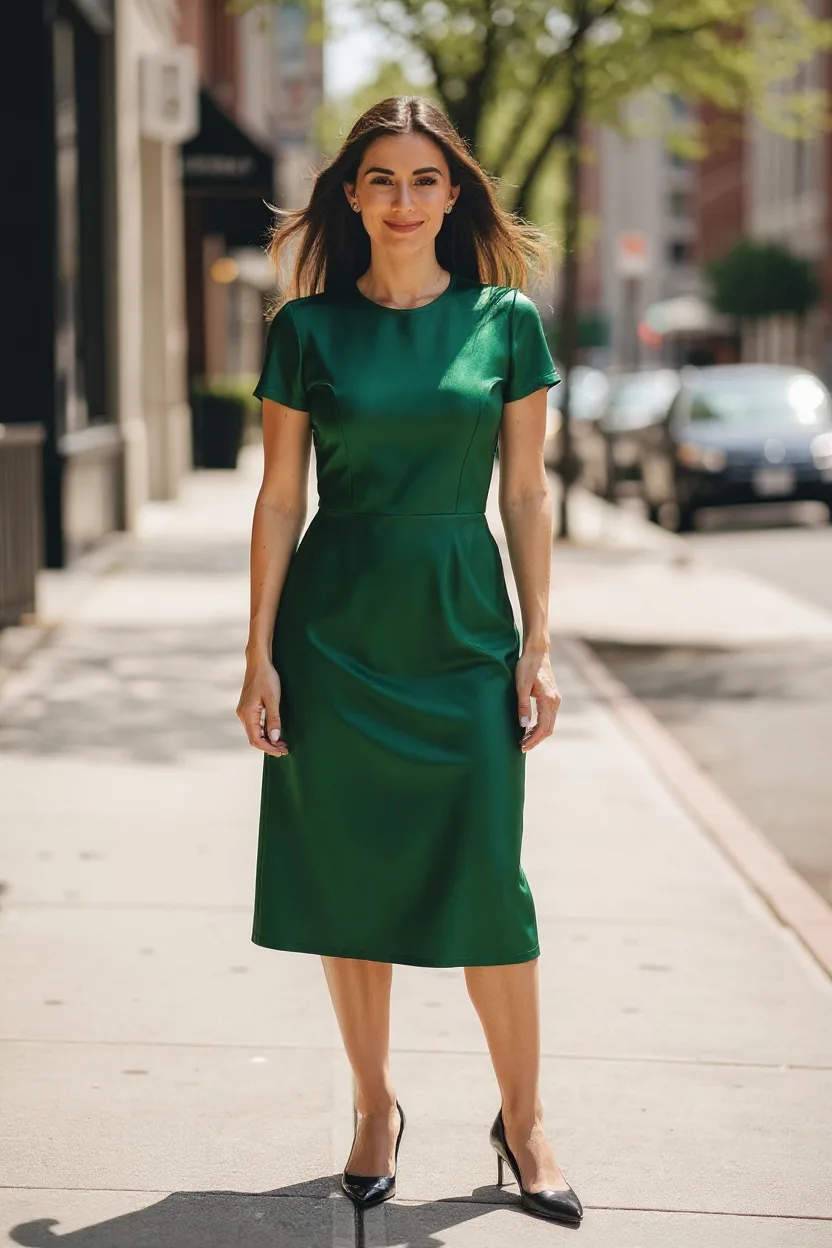
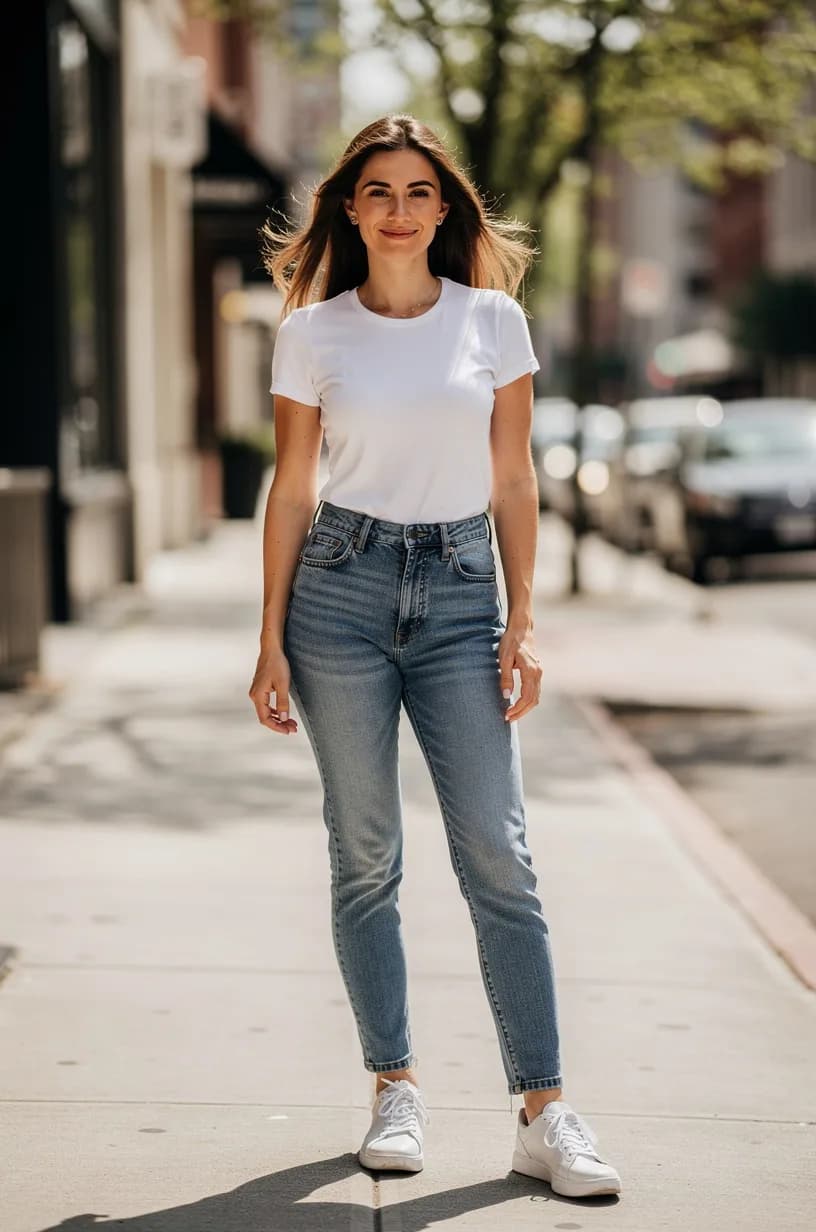
Two ways to try on clothes digitally
1. A clothes color changer
A color changer keeps your exact garment and only shifts its color. Same fit, same folds, new shade.
Use it when:
- You own the item and wonder whether it comes in a better color
- You’re choosing between color options of the same product
- You want to test a color palette, like whether olive or burgundy works with your skin tone
Color changes are a basic edit, so they’re instant, free and run in your browser. If you’re not sure which shades suit you, try our color analysis tool or read the seasonal color analysis guide first.
2. An AI outfit changer
An AI outfit changer replaces the garment with a different style. It redraws the clothes while keeping your face, hair, body shape, pose and background.
Use it when:
- You want to see a completely different look, like casual to formal
- You’re planning an event outfit (wedding guest, interview, festival)
- You want to try styles you’d never normally pick up in a shop
How to try on outfits in FaceBodyTune
AI outfits use your free daily AI allowance first, then credits.
- Upload your photo in the editor.
- Open AI tools and choose Outfit styles. Pick a look such as Business suit, Summer floral dress, Leather jacket, Casual denim or Athleisure. There are also festive options like Saree, Lehenga and Kurta.
- Or choose Try on a garment and upload a photo of a specific item you’ve found.
- Apply and compare with the before/after view.
- Try a few options, then download your favorites to compare side by side.
For quick color checks instead, open the Outfit tab and use Clothes color on what you’re already wearing.
Tip: try the same outfit in two or three colors. Use AI to change the style once, then use the clothes color tool to test shades on the result.
What photos work best
The quality of your try-on depends heavily on your starting photo.
Pose and framing
- Stand facing the camera, or at a slight angle, with arms relaxed and slightly away from your body.
- Show the whole outfit area. For a dress or full outfit, use a full-length photo. For a blazer or top, waist-up is fine.
- Avoid crossed arms, hands in pockets or bags covering your body. The AI has to guess what’s behind them.
Light and background
- Even daylight from the front gives the most natural fabric and folds.
- A plain or simple background helps the AI keep the edges of the new outfit clean.
- Avoid strong colored light, such as neon or sunset, which tints the new clothes.
What you’re wearing now
- Fitted, simple clothes work best as a starting point. A plain t-shirt and jeans gives the AI a clear shape to work with.
- Very baggy or layered clothing hides your shape, so the new outfit may fit oddly.
- Our outfit styles are designed to cover at least as much as your original outfit, so start with what you’re comfortable showing.
Garment photos for try-on
If you’re uploading a specific item:
- Use a clear, front-facing product shot on a plain background
- Choose images where the whole garment is visible, not cropped
- Avoid photos with heavy shadows, or a model in an extreme pose
Tips for realistic results
- Match the occasion to the setting. A tuxedo in a kitchen looks odd; a tuxedo against a plain wall looks like a fitting.
- Check the details. Look at buttons, collars, hems and where the outfit meets your hands and neck.
- Do one change at a time. Change the outfit first, then other edits like hairstyle or background, rather than all at once.
- Keep your body shape the same. The tool keeps your proportions for a reason: the goal is to see how clothes look on you.
- Try again if needed. AI results vary a little each time; a second attempt can fix an odd fold or sleeve.
Great ways to use AI outfit try-on
- Before buying: narrow down a shortlist and avoid returns.
- Event planning: see wedding guest, party or interview looks in advance.
- Packing for a trip: build a capsule wardrobe and check that everything works together.
- Professional photos: see yourself in a suit before booking a shoot, or compare with an AI headshot from our LinkedIn headshot generator.
- Pure fun: try styles from other cultures, decades or aesthetics you’d never normally wear.
Honest limits to keep in mind
AI try-on is a style tool, not a tape measure. It shows you color, cut and overall vibe, but it can’t guarantee fit, fabric or sizing. Always check measurements and size charts before buying. And if you’re sharing a try-on image, especially on a dating profile or for work, remember it shows clothes you may not own.
On privacy: basic edits like clothes color run in your browser, and we don’t keep your photos.
Before-you-buy checklist
- Tried the look in a full-length, well-lit photo
- Checked collars, sleeves, hems and edges
- Tested two or three colors of the same style
- Compared side by side with your current favorite outfit
- Checked the brand’s size chart for fit
The more outfits you preview, the clearer your style becomes. Have fun with it.
Frequently asked questions
Can AI show me in different outfits?
Yes. An AI outfit changer can redraw your clothes in a new style, such as a suit, a summer dress or a leather jacket, while keeping your face, body shape, pose and background the same.
What is the difference between an AI outfit changer and a clothes color changer?
A clothes color changer keeps the exact same garment and only changes its color. An AI outfit changer replaces the garment with a different style. Use color for quick “would this look better in navy?” checks, and AI for a whole new look.
Can I try on a specific item of clothing I found online?
In FaceBodyTune you can upload a photo of a garment with the Try on a garment option and see it on your photo. Clear, front-facing product photos on a plain background work best.
Is AI try-on accurate for fit and size?
No tool can promise true fit. AI try-on is great for judging style, color and overall look, but always check the brand’s size chart and measurements before buying.
Try it on your own photo
Free face and body edits right in your browser — plus AI tools when you want more.
Try outfitsKeep reading

How to Remove Objects From Photos (People, Wires & Clutter)
Learn how to remove objects from photos cleanly: strangers in the background, power lines, clutter and stray text. Simple AI steps plus the tricks that stop smudges and ghost edges.

How to Add Six-Pack Abs to a Photo with AI (and Keep It Realistic)
AI can add realistic, toned abs to a photo in seconds. Here’s how it works, which photos give the best results, and how to keep it believable.